A few years ago, DVD was still the mainstream technology, but now it is somewhat outdated.
However, many people still keep DVDs of their family files, movies, and other data.
When burning DVDs, the video stream is placed in a VOB container, so the video files are given a. Vob extension, which is difficult to format. Many users prefer to simplify their work by converting VOB files to a more suitable file type.
If you want to create a new cool video based on old recordings and bring new joy to your friends and family, you need a feature rich VOB editor that supports video conversion. Try Movavi software, you can edit VOB files freely on Mac, Windows 10, Windows 8, and Windows 7.
Movavi Video Suite is a powerful tool that can be used for VOB video editing, cutting, merging, converting, compressing, or anything you want to do in the field of multimedia processing. So, follow the guide below to learn how to edit VOB files
Step one. Install and run Movavi Video Suite
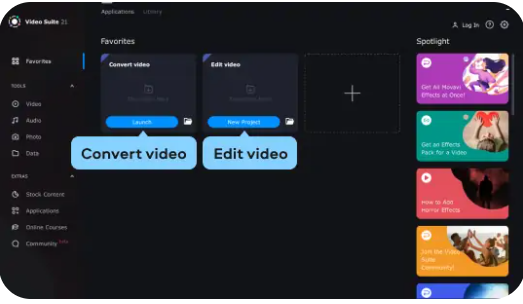
Please download Movavi Video Suite on PC or Mac and double-click the file. After installation, when launching the software, you need two main options: convert the video to convert the file to a more suitable format, and edit the video to modify the required content in the video
Step two. Convert your VOB file
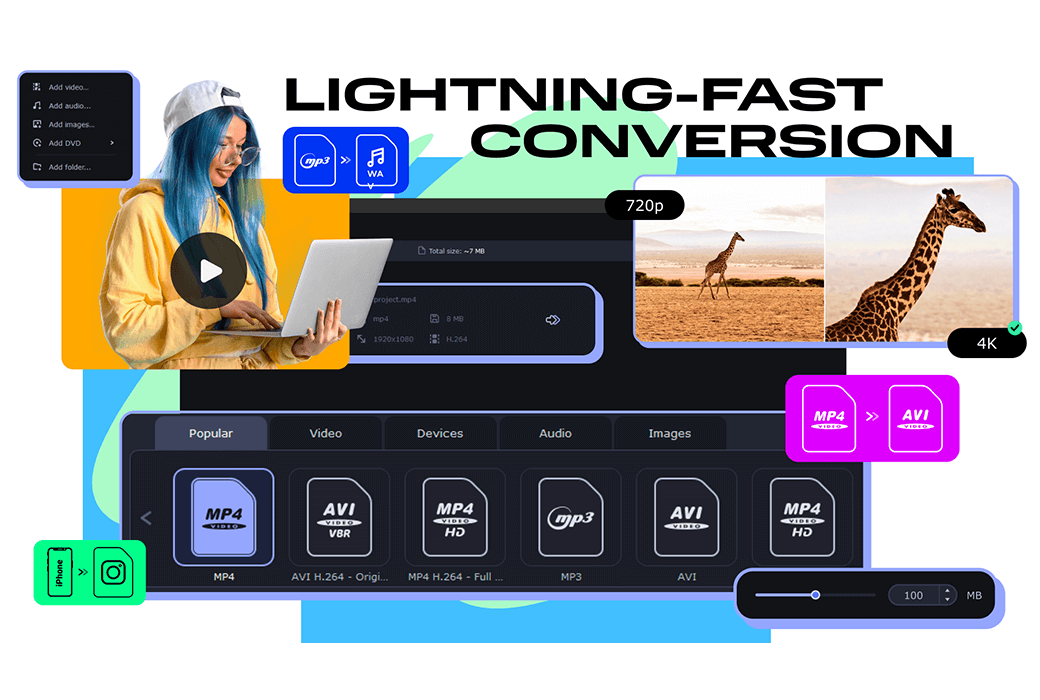
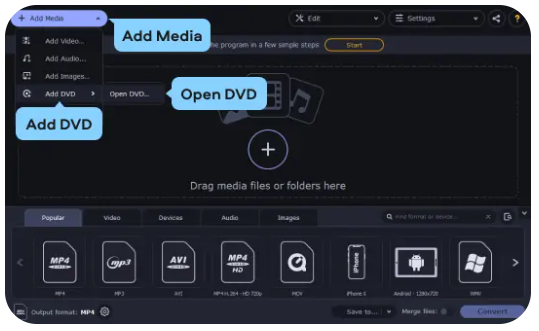
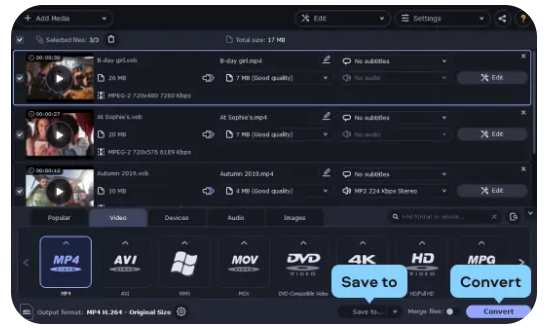
The first thing to do is to convert your file to a more convenient format. At the beginning, select "Convert Video", as shown in the screenshot above, and a new window will appear. Now click the "Add Media" button, select "Add DVD", and then open the DVD. Next, select the directory containing your VOB files
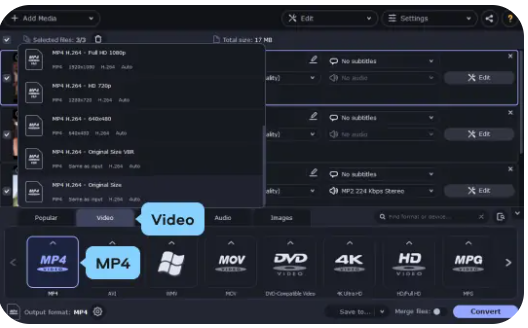
After selecting all the necessary files, go to the video tab and choose the appropriate preset group (e.g; MP4 Or AVI), And specify the preset that best suits your needs, such as; MP4 H.264- Original size, the information in the bottom left corner will change according to your selection
Click the 'Save to' button to decide where to save the converted file. Now click 'Convert' and wait for a short period of time (processing time displayed at the bottom of the window), it's done! Close the converter window and return to the main interface of Movavi Video Suite
Step three. Start editing your video
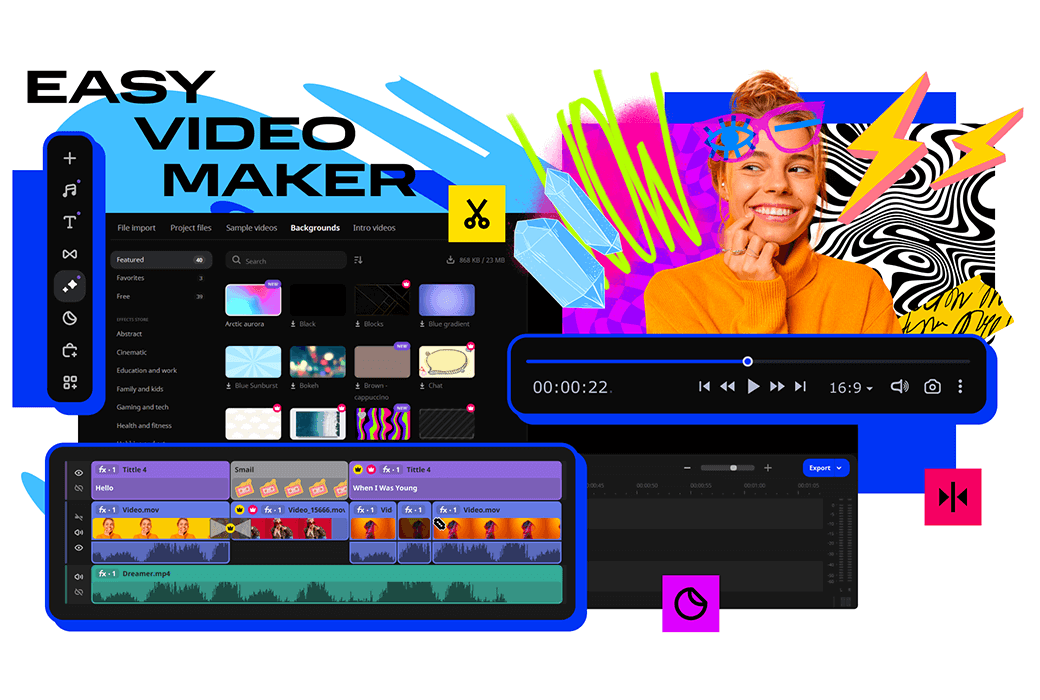
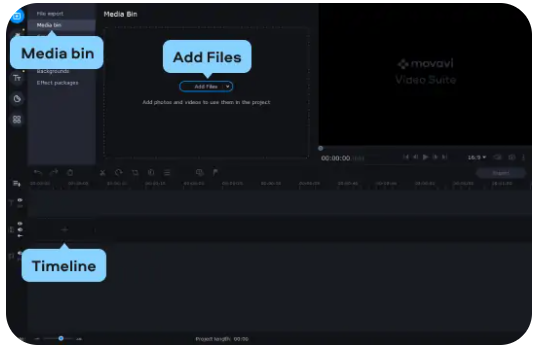
It's time to edit your converted video now. Click "Edit Video" on the main program interface, wait for the editor to load, click the "Add Files" button to add your files to the project, select from the folder where you placed the video, and they will appear in the media box. Drag them onto the timeline to start editing
Due to its numerous features, it is almost impossible to describe all the functions of the program. We will focus on introducing the most important part
Merge/Merge/Merge
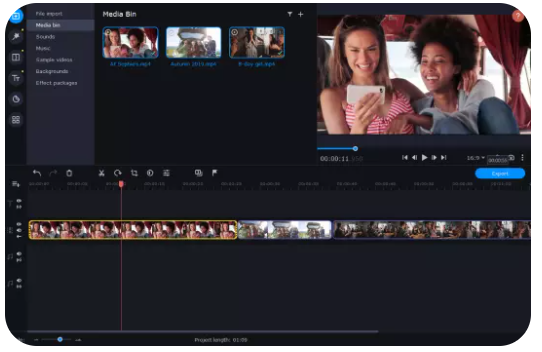
The video connection is very simple - after you put the video on the timeline, just arrange it in the order you want. When exporting files, all videos on the timeline will be merged into one
Trim/Trim/Split
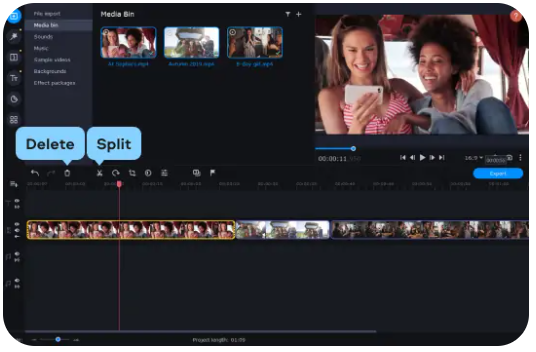
The next function is the trimmer, which can be used to delete the parts of the video that you don't want to keep. There is a red mark next to your video on the timeline. Move the mark to the edge of the segment you want to cut, then click the "Split" button to do the same for all unnecessary parts. Then select the parts that you don't want to keep and click Delete
Add transition
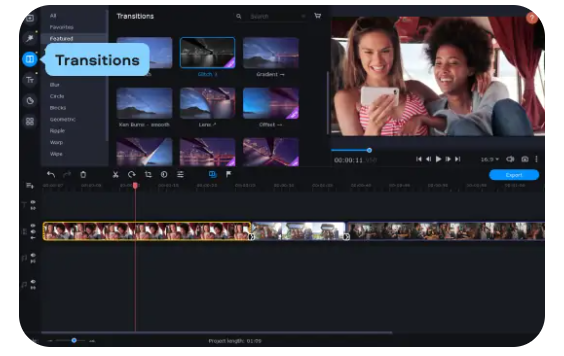
If you watch a movie, you may find that sometimes the scene transitions too suddenly. To make the video smooth, use smooth fading, enter transition tags, and drag your favorite transitions to the timeline between segments. You can add the same transitions to all clips or choose different ones
Add music
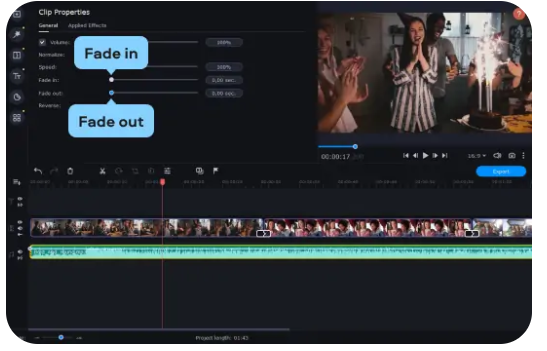
You can also add music to your materials like adding videos, go to the import tab, click on file import, and then add files. Now select an audio file that will appear on the timeline below your video. If necessary, trim the track like cutting a video. If you want the music to fade in and out, double-click the track and move the relevant slider (fade in and fade out) in the open window
Step four. Add function
Let's add some fun to the video. There are many features to choose from, and you can explore the Movavi video suite on your own. You will definitely discover many interesting things, and we have only selected three of them to discuss
Add filter
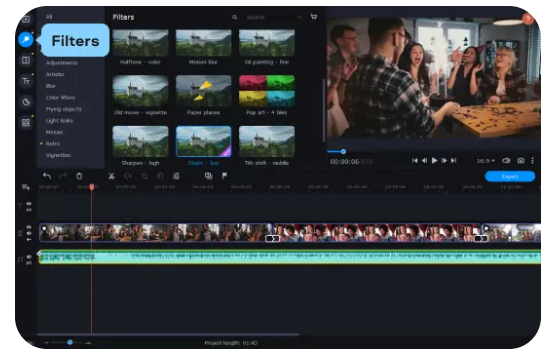
The 'Filters' tab provides a wealth of creative options: you can mirror your material to make it look like an old movie, add mosaics, and even use multiple filters in a single video clip. Just drag the filters onto your video and they will automatically apply. There are no restrictions except for your imagination
Add a title
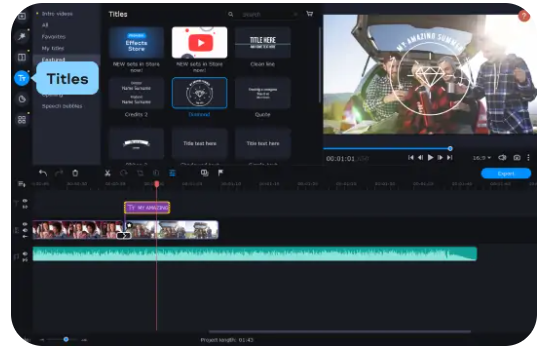
You can also add titles to the video. If there are subtitles like "Sarah's Wedding" or "Our 30th Anniversary," the audience will be more likely to keep up with what's happening. You can add text by clicking on the title tag and selecting the corresponding title preset. Drag your favorite one onto the timeline, add your own text, and then double-click to edit the display
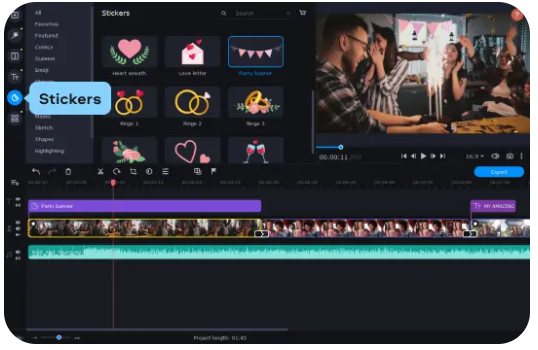
If you want your friends to laugh, try decorating your videos with stickers. Select the content you want from the sticker tab and drag them into your video. They will be displayed in the opening track above the video track. You can set the time and duration of their appearance by moving and changing the length of the corresponding rectangles.
Save results
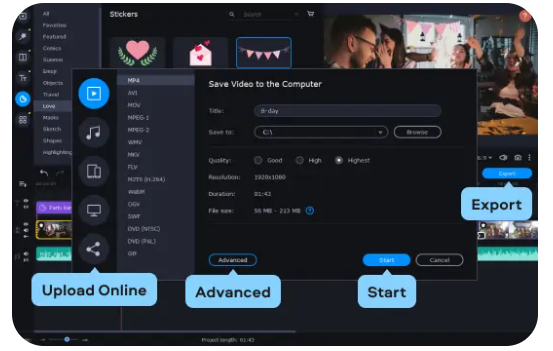
After everything is ready, it's time to save your work. Click Export, then specify the desired format on the left side of the window that appears, fill in the file name and destination on the right side, and adjust other settings such as resolution, video encoding, frame rate, etc. You can click Advanced to access these contents. After completion, click Start. If you want to upload a new video to YouTube or Vimeo and share it with friends and family through a direct link, simply select "Online Upload", log in to your account, and click "Upload". This is how to edit VOB files on Windows and Macintosh computers